For editing GDL / IDL .pro files on Linux you can of course use any Text Editor (gedit, vi) or the IDLDE, but the following could prove useful:
1. Kate
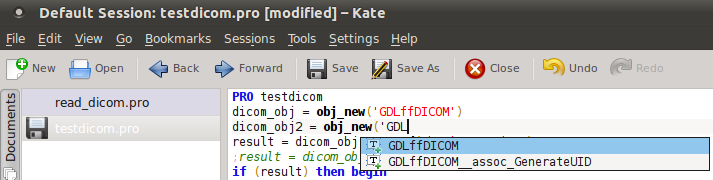
Kate Editor with GDL file
Kate is a text editor for the KDE desktop environment but looks just as good on a Gnome Desktop (Ubuntu default). Kate has built-in support for syntax highlighting .pro files. To install, search for Kate in the Ubuntu Software Centre, or at the command line use:
sudo apt-get install kate
Opening a .pro file in Kate should show your syntax highlighting and some auto-completion.
You can also have a split view with a terminal panel so you can run GDL commands.
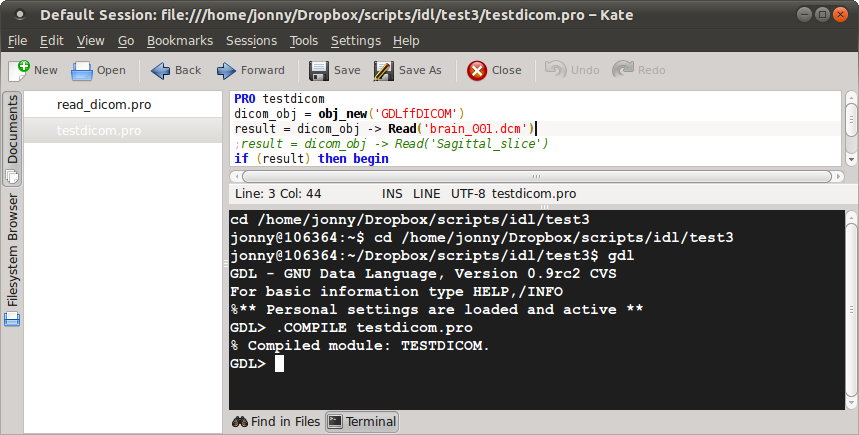
Kate with GDL code and the GDL command prompt
2. Emacs & IDLWAVE
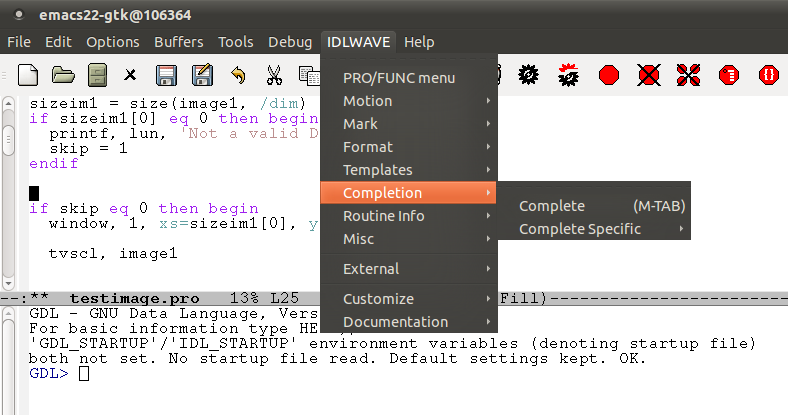
Emacs with IDLWAVE
The IDLWAVE website has some good instructions. First install emacs from the Ubuntu Software Center or at the command-line use:
sudo apt-get install emacs22-gtk
Next install IDLWAVE at the command line with the following commands:
wget http://idlwave.org/download/idlwave.tar.gz
tar xzf idlwave.tar.gz
cd idlwave-6.0/
make
make install-all
After installing IDLWAVE create a file named .emacs (dot emacs) in your home directory with the following content:
;; This is only necessary if the default install directory is not on
;; your Emacs "load-path":
(setq load-path (cons "/usr/local/share/emacs/site-lisp" load-path))

(autoload 'idlwave-mode "idlwave" "IDLWAVE Mode" t)
(autoload 'idlwave-shell "idlw-shell" "IDLWAVE Shell" t)
(setq auto-mode-alist
(cons '("\\.pro\\'" . idlwave-mode) auto-mode-alist))
Open emacs (Applications > Accessories > Emacs 22) and notice the IDLWAVE menu. Notice the menu option for IDLWAVE > External > Start IDL shell. To get this to work you will need to create a symlink for the idl command pointing to the gdl program, as follows:
sudo ln -s /usr/bin/gdl /usr/bin/idl
Hello!
I’m at the last step of trying to install idlwave on my mac computer and I’m confused as to what the last question is asking concerning the symlink. How exactly do I do that? Also with the step prior I created a file using textwrangler and named it test.emacs and copied and pasted the content and saved the file to my desktop. Am I supposed to do this?
Thank you!
-Kalvin
Kalvin,
You probably want to use the Terminal app and type the command to create the link e.g. sudo ln -s /usr/bin/gdl /usr/bin/idl
For yout test.emacs file I would suggest saving it as .emacs rather than test.emacs and it should be saved in your home folder (e.g. /Users/Kalvin ) rather than your desktop. Finder does not show hidden files and folders without some work so you might be better learning a bit about using the command line and using Terminal. For example, tying ‘ls -al’ (without the quotes) in Terminal will show all files and folders in your home folder including the hidden . files such as .emacs
Hope this helps,
jonny
Hello,
I have installed the idlwave successfully on my Mac, but I don’t know how to make highlight syntax for the key words such like ‘plot’. Can you tell how to set it ?
Thank you!
-Peter